WWDC

Me at WWDC 2018

WWDC 2022 was this past week and it was great. I didn’t get to watch enough sessions. There are a ton that I want to watch. I’ll slowly chip away over the next few months.

I’ve been lucky enough to attend Apple’s WWDC in person several times. I’ve been to WWDCs in 2012, 2014, 2015, and 2018. I “won” a ticket in 2019, but we transferred it to a teammate so that he could experience WWDC in-person.

My first WWDC was in 2012 at the Moscone West in San Francisco. I had never been to California before. Everything was new and interesting. The entire trip was amazing and a little overwhelming. I loved every second of it. That same year, I attended Google I/O (also in Moscone West), but WWDC was different.

My last WWDC was in 2018 at the San Jose McEnery Convention Center in San Jose. I liked the WWDC being in San Jose. It gave a new vibe to the conference. Selfishly, I was able to explore a new city experience some new things.

Being at WWDC in-person beats any other experience. There’s a level of focus you’re able to give to the conference and all the amazing tech Apple has announced. You are there to focus on the conference and it’s easier to tune out other things. Flying across the country can be a hassle, but I think that bit of distance helps with the focus.

When I watch WWDC remotely, I don’t get that same level of focus. Things will come up at work and home. Slack dings, dinner needs made, kids need to go to practice, dogs need walked, etc. At home, the list of distractions is pretty long, especially when it’s not essential work.

I say all this as someone who’s been very productive as a fully remote employee for the last six years. I can handle one week a year being in-person with other folks and totally focused on the new Apple tech.

I do enjoy the pre-recorded session videos. They are very well produced and succinct. Sometimes I thought in-person sessions were trying to fill the full time slot allotted. Now, the videos contain exactly what they need to. No less, no more. And they look great.

I think the format for this year’s WWDC may be the future of the conference. Inviting a number of people to Apple Park for some in-person video watching and the rest of the conference being remote.

I’m not sure if I’ll ever get back to take part of WWDC in person. I would love to. But I realize that I’ve been lucky enough to attend a handful of times.

As long as Apple invites people to attend in-person, I’ll keep trying.

'Beer Style Guidelines 2022.2'

Beer Style Guidelines 2022.2 has been released.

I’m on a bit of a roll with these updates. In both of these updates, I’ve added new guides.

This update includes the following:

I had attempted to fix a crashing issue in the 2022.1 update. I don’t quite think that I got it that time. With the 2022.2 update, I feel much more confident that I was able to fix the crashing issue.

I have a few ideas on what I’m going to do next. None of the ideas are concrete though. I’ve thought about some new features to add to Beer Style Guidelines. I may also want to try working on a few new ideas that I’ve had.

I’m not sure what I’ll work on next. For now, I think I’ll just sit back and have a 🍺.

Full list of release notes: https://beerstyleguidelines.app/release-notes/2022.2.txt


'Beer Style Guidelines 2022.1'

I released Beer Style Guidelines 2022.1 today. It’s the first update of the year.

The update includes the following:

  • Adds the 2021 BJCP Beer Style Guidelines.
  • Fixes a crashing issue.
  • Removes access to the 2015 BJCP Beer Style Guidelines.
  • Removes access to the 2020 Brewers Association Beer Style Guidelines.
  • Adds basic Telemetry analytics.
  • Updates the “Page Down” keyboard shortcut to use a space (as it should have been all along).

The two big changes for me are the addition of the 2021 BJCP Beer Style Guidelines and fixing a crashing issue.

I had missed that the BJCP had released a new guideline at the end of December. It’s the first update to the guidelines since 2015. I don’t check all that often for new updates, but I should try to stay on top of things better.

I also fixed a crashing issue. I’d seen a few reports of it in my weekly emails from Apple. I finally dove into it and got it fixed.

I’ve already got the next update planned. The Brewers Association has released their 2022 guidelines and I want to get that into the app as soon as possible.

Once that’s done, I have some other things in mind. I’m excited to get started on those once I’ve got all of the guidelines updated and current.

Full list of release notes: https://beerstyleguidelines.app/release-notes/2022.1.txt

Please enjoy the update.


'UIKeyCommand — Part 3: macOS Catalyst Menu Items'

This is the final post in a series on adding UIKeyCommands (keyboard shortcuts) to an iOS app. In this post, we’ll cover how to add menu bar items to a macOS Catalyst app using UIKeyCommands.

This will not be a full tutorial on how to add menu items to macOS Catalyst apps. Instead, this post will demonstrate that you can use the same keyboard shortcuts created in part two and create menu items.

In macOS Catalyst apps, your UIApplicationDelegate class (usually AppDelegate) will configure the menu bar. This is handled in the func buildMenu(with builder: UIMenuBuilder)  method (documentation). In this method, you can add and remove menu items and sub menu items.

You can download the corresponding sample app here (the branch is part-3-catalyst). I slightly refactored the code that creates the UIKeyCommand to be a class level variable on the two view controllers. They can now be easily accessed like: TableViewController.showTableAlert.

Use the existing UIKeyCommand objects in a UIMenu initializer and then added to the builder object in the buildMenu method (from above) like this:

let menu = UIMenu(title: "Show",
				  identifier: .show,
                  options: .displayInline,
                  children: [TableViewController.showTableAlert,
                             DetailViewController.showDetailAlert])

builder.insertChild(menu, atStartOfMenu: .file)

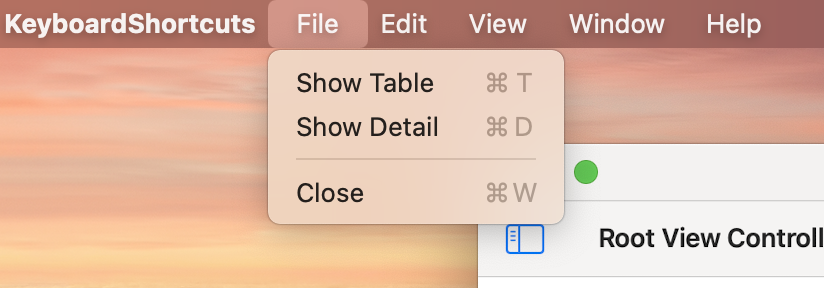
This little block of code adds the “Show Table” and “Show Detail” menu items. When you run the app, it will look like this.

Resulting menu

That’s it. That’s really all there is to it to take existing keyboard shortcuts and add them to a macOS Catalyst app as menu items.

UIKeyCommand object are incredibly versatile in the situations we’ve gone over in this series. They can be added to both simple and more complex apps. They can also be used in macOS Catalyst apps to provide menu bar items.

Part 1 | Part 2


'UIKeyCommand — Part 2: Split View Controller'

In the first post in this UIKeyCommands series, we went over the basics of UIKeyCommands and adding keyboard shortcuts to an app. Adding keyboard shortcuts to a real app can be a little more complicated, but not much.

First, some background

My latest update of Beer Style Guidelines has these keyboard shortcuts reenabled. A long time ago, I had keyboard shortcuts enabled within the app. At that time, I didn’t have a clear understanding of how they worked. This lack of understanding meant that the keyboard shortcuts didn’t quite work the way I expected them to (or at all sometimes).

I became frustrated with my lack of understanding and I just disabled the keyboard shortcuts. I didn’t have a lot of time to investigate and figure out what was wrong. But I was determined to figure it out. Recently, I had purchased an iPad Air (4th Generation) and an Apple Magic Keyboard. This gave me the kick in the butt to get the keyboard shortcuts working again.

Getting the keyboard shortcuts working wasn’t a lot of work. I just lacked an understanding of how to put it all together. I hope to impart some of that wisdom in this post.

Beer Style Guidelines has a Split View Controller view architecture.

Split View Controller Wireframe

In my first iteration of keyboard shortcuts, I had two or three commands. They were all triggered from the Detail View Controller (the large part of the screen). I wanted to add more keyboard shortcuts, but I was paralyzed with not knowing how to proceed.

Ok. So, what was holding me up? I wasn’t sure which view controller in the app I needed to implement the keyboard command. Did I need to add them all to my Split View Controller class? Did I need to implement the commands in one view controller or the other, based on a user’s focus?

I started by adding the commands to the split view controller class. But it turns out that isn’t the correct answer. The correct answer is that you implement the keyboard commands wherever you need them, and let the Responder Chain take care of the rest.

Responder Chain? What?

In iOS, there is this thing called the responder chain. The responder chain is how iOS (and UIKit) determine how to handle events. This chain starts with the first responder and then traverses the rest of the chain looking to handle the event. In the case of UIKeyCommands, UIKit will traverse the responder chain and collect the UIKeyCommands for the current scenario.

This WWDC video (Support hardware keyboards in your app) does a fantastic job of explaining all of this. It’s also super short. I only discovered the video after I figured out how this works.

You may have noticed that the UIApplicationDelegate class (usually called AppDelegate) is a subclass of UIResponder. What you may not have noticed is that all UIViewControllers and even UIViews subclass UIResponder.

Back to UIKeyCommand

Getting back to where to implement the keyboard shortcuts. I ended up implementing the keyboard shortcuts for the list view (search, change guide, etc), in the list view controller. The keyboard shortcuts used in the detail view controller (like toggle favorite, next/previous section, etc) were implemented there.

Like in part one, I’ve created a sample app to put this into practice. This sample app uses a Split View Controller and implements keyboard shortcuts where it makes sense. The sample app only has a few keyboard shortcuts.

The list view controller has two keyboard shortcuts and so does the detail view controller.

You may notice something strange about these keyboard shortcuts. Both have the “Show Info” keyboard shortcut. I did this as a test more than anything. I wanted to see what would happen if there are duplicate keyboard shortcuts. Likewise, I also wanted to see where this was called from when triggered. I discovered that found that the keyboard shortcut in the detail view controller usually wins. I think that’s because it’s the first responder in the chain that responds to this command.

This may feel a bit overwhelming. But it’s not very difficult. The sample app should give you a better idea of how easy it is to implement keyboard shortcuts in a split view controller.

There’s one more post in this series. Next time, we’ll stray away from iOS slightly to use UIKeyCommands to add menu items to a macOS Catalyst app.

Part 1 | Part 3


'UIKeyCommand — Part 1: The Basics'

This post is the first in a series of three on UIKeyCommands on iOS. In this first post, we’ll go over UIKeyCommand at a high level.

What are UIKeyCommands?

UIKeyCommands represent a key press (or combination of key presses) on a hardware keyboard that will trigger an action. In short, you can think of these as keyboard shortcuts. The system already has a few built-in keyboard shortcuts. Some of these are keyboard shortcuts are Cut (⌘ + x), Copy (⌘ + c), and Paste (⌘ + v).

Beginning in iOS 7, Apple started allowing developers to implement keyboard shortcuts. The system already handles Cut, Copy and Paste and developers won’t need to implement these.

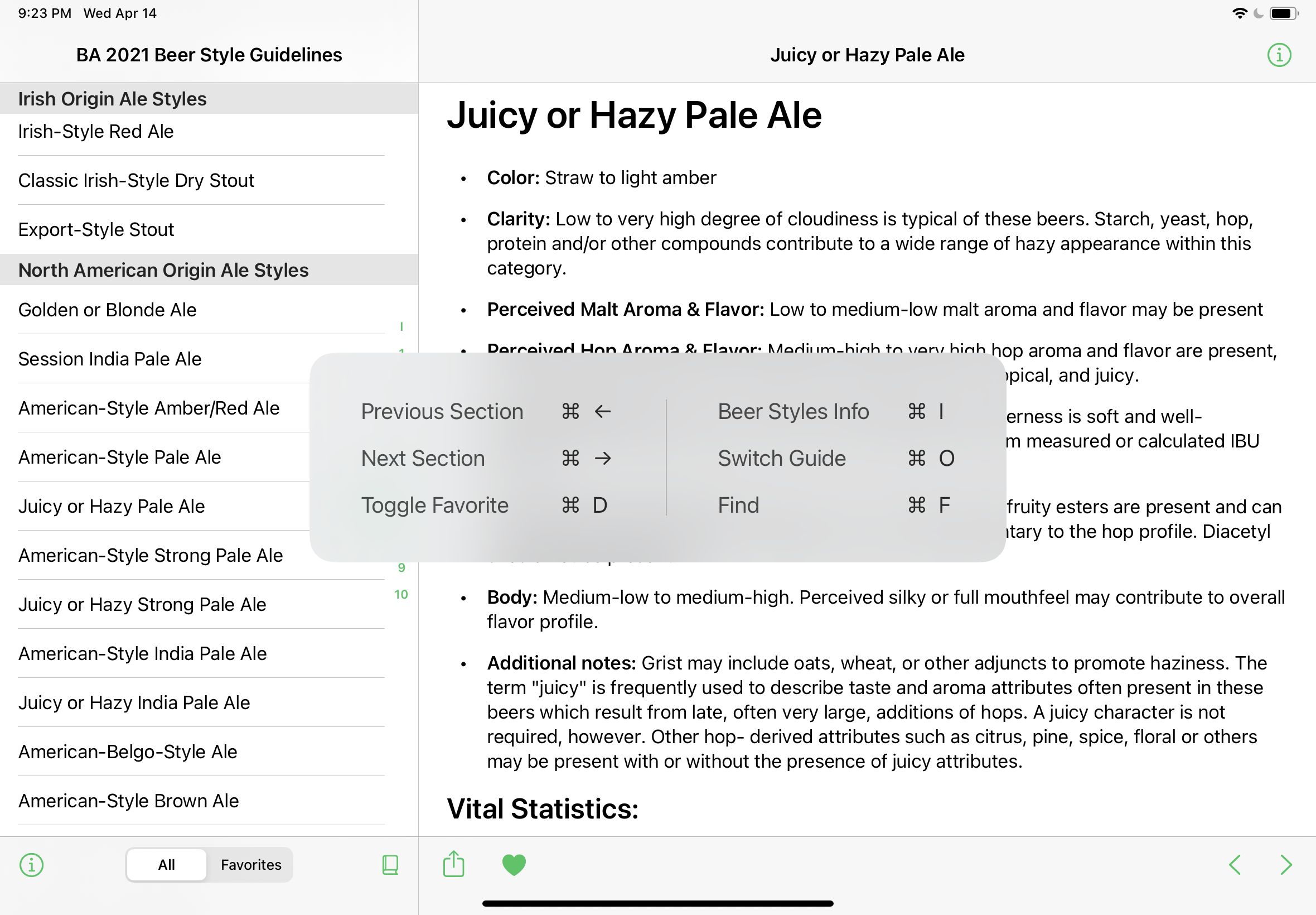
These keyboard shortcuts have been around for a few years. So, it’s easy to see how other developers have implemented these. A great way to discover what keyboard shortcuts apps have is to launch the app, and then hold down the command (⌘) key. Here’s an example from my app Beer Style Guidelines.

iPad Keyboard Shortcut Discovery

How do I implement my own UIKeyCommand?

There are two parts to implement UIKeyCommands in your app. First, is the UIKeyCommand object itself. Then these UIKeyCommands need to be integrated into the app.

The initializer for UIKeyCommand has a lot going on. You don’t need to use every parameter. Here are the minimum parameters to create a UIKeyCommand object. Those parameters are:

  • title: This is the display title of the keyboard shortcut.
  • action: This parameter points to the method that gets called from this shortcut.
  • input: This is the keyboard key (a string) that is part of the keyboard shortcut. For example, the “c” in the Copy shortcut (⌘ + c)
  • modifierFlags: This is the modifying key that is the other part of the keyboard shortcut. For example, the “⌘” in the Copy shortcut (⌘ + c)

Putting all of this together, you can create a keyboard shortcut like this:

let infoCommand = UIKeyCommand(title: "Show Info",
                               action: #selector(showInfo),
                               input: "i",
                               modifierFlags: .command)

In this example, the user will trigger a keyboard shortcut to show info when they use ⌘ + i. This will show them an iOS alert with a simple message in it.

I’ve created a sample app that pulls all the various pieces together. The sample app, is simple. It has a single keyboard shortcut. You can discover this just like keyboard shortcuts in other iOS apps.

Download and run the sample app. Once launched, hold down on the Command key (⌘) until you see the prompt showing the single keyboard shortcut within the app.

Testing in the simulator.

If nothing shows up, and you’re testing this in the simulator, you may need to enable “Send Keyboard Input to Device” in the simulator. This can be done through the menu system by selecting I/O → Input → Send Keyboard Input to Device. Or, you can click on this button in the toolbar (below) of the simulator. Without doing this, sometimes the keyboard shortcuts can be lost, and it will seem like the keyboard shortcuts are not working.

Send Keyboard Input to Device

That’s it. Keyboard shortcuts are straightforward to set up and get working in your apps. Next time we’ll get a little more in-depth on UIKeyCommand.

Part 2 | Part 3


MyCndwn - TestFlight

This past weekend, MyCntdwn took a step forward. I sent a new build of it to Apple’s TestFlight. It’s the first time a MyCntdwn build has been uploaded to TestFlight in years.

This doesn’t really mean anything is going to happen with it. I just wanted to upload a new build so that I can test things on multiple devices in a (more) real world environment.

Once I downloaded the TestFlight build, I immediately found 5 or 6 bugs. My iCloud syncing also didn’t work. But at least that gives me some important information. It gives me plenty of things to look into.

I haven’t had a lot of time to invest in MyCntdwn so far this month. I’ve got another app (through work) which is shipping very soon and has captured most (if not all) of my attention. I hope things change soon. Either that, or I’ll be totally burnt out on dev work and need to just sit and stare at the wall for a while.

Either way, I’m happy with this latest step. It’s a step. It means that I’m moving forward and continuing with the process.


MyCntdwn Lives?

Over a year ago, I removed MyCntdwn from the App Store. But I’m not sure that’s the end of the story for MyCntdwn.

I’ve been working on an update to MyCntdwn for a long time now. I’ve had multiple starts and stops. This could just be another false start in the lifecycle of MyCntdwn. I’m not really sure just yet.

Why am I doing this?

Working on MyCntdwn is a mechanism for learning new things. In my normal day job, I don’t usually get to play with the latest and greatest technologies. The apps I’m working on currently support iOS 12+. We do get some time set aside to learn new tech, but we rarely ever get to apply it. This gives me the chance to do that.

I’ve started this latest iteration/update of MyCntdwn with a brand new Xcode project. I started from scratch. Nothing has transferred directly over. I’ve been using old code as a reference, but nothing has been directly copied over.

I’ve been using a lot of things I just can’t use in my day job. SwiftUI, Combine, CloudKit (cloud sync, finally!), etc. The learning curve for these technologies has been steep, but it’s exactly what I have been looking for. This has given me a chance to learn new technologies, and apply them in a real-world app.

The template that I chose for this project may allow me to release a native macOS app too. Not Catalyst, but built with native SwiftUI code. I haven’t actually tried this yet, I’ve been focused on the iOS experience, but I plan to at some point.

I may even try to include one or more widgets for the app using WidgetKit.

Why am I doing this with MyCntdwn?

I’m not really sure. I have had other app ideas, but nothing has really taken root in my brain. MyCntdwn was my first (shipping) app in the App Store (shortly after the App Store launched) and continues to be my baby (app-wise).

MyCntdwn also gives me a comfortable app to play in. I know how it should work. I know the feature list. I’m not trying to solidify a new idea while also learn new technologies. So far, It’s been working out nicely.

What’s next?

I’m just going to keep at it. Learning new things and applying them to MyCntdwn. I’m not sure if these changes will ever go anywhere. But I’ve had a lot of fun learning. Who knows, I may even be able to use them in my day job in a year or two.

Or I may get distracted with video games (currently playing The Legend of Zelda: A Link Between Worlds again) and abandon this entirely.


Getting Out of My Technical Rut

I’ve spent about six months in a technical rut. Not really learning anything new iOS/tvOS/Swift-wise. I got a little complacent with the skills that I had.

Recently, I’ve started breaking out of that rut. At least I hope.

Over the past week and a half, I’ve made my way through Core Data by Tutorials from the Ray Wenderlich team. The Core Data book is currently on sale (50% off). It’s a really good book.

I’ve used Core Data quite a bit over the years, but I haven’t used it heavily since 2016. Since 2016, most of my professional work has been using Realm which is an alternative to Core Data.

Core Data by Tutorials was a really nice refresher on Core Data. I also learned a few new tidbits here. Most interesting chapters to me were “Unit Testing” & “Core Data & CloudKit”.

The unit testing chapter gave me some great ideas on how to improve my unit testing in various areas. I’ve been trying to get better with unit testing in both professional and personal projects. This chapter sparked some interest in that area that I’ve been able to progress with, so far.

The Core Data and CloudKit chapter was entirely new to me. I’ve had multiple false starts on getting cloud syncing working in projects. These attempts include a failed blog series called Data Sync Series. I had also made multiple attempts to get syncing into my retired app MyCntdwn.

This book has got me thinking about data syncing again. I’ve even thought about doing a few things. First, adding sync to MyCntdwn (finally) and shipping it again. Second, revamping my data sync series and actually finishing it. I’m not sure if any of this will happen. But this book has got me started down that path mentally. Who knows, maybe it will be a nice Summer project.

I’ve got my next book lined up. It’s Combine: Asynchronous Programming with Swift also from the Ray Wenderlich team. I’ve been dabbling in Combine here and there since it was announced by Apple at least year’s WWDC. It’s not something I can really use professionally, yet. Combine requires iOS 13+ to work and we support iOS 11+ at work. But Combine is something that I can use in personal projects.


Beer Style Guidelines 2020.5 Released

My latest release of Beer Style Guidelines has just gone out.

This version of Beer Style Guidelines (finally) includes a new beer style guideline. I’ve just added the Brewers Association 2020 Beer Style Guidelines. This is the first guide update I’ve done since the 2017 version of this same guide.

The other (included) guides from the Brewers Association are so old (2016 & 2017), I’ve removed them from the app. I’m not aware of many people who like to compare the guidelines from year to year. To me, it only makes sense to have the latest version included in the app.

I’ve also fixed a few bugs within the app. But the largest change is the new guide being added.

Full list of release notes: https://beerstyleguidelines.app/release-notes/2020.5.txt

Please enjoy the update.


Beer Style Guidelines 2019.1 Released

This past week, I released a new version of Beer Style Guidelines. It’s the first update to the app in almost two years (Nov 6, 2017). Talk about a neglected app!

What’s since the last version

Here’s a full list of the things I’ve changed in the app since the last release. Most of it happening in the last month or so.

  • Tore out Fabric/Crashlytics (good riddance)
  • Set the deployment target for iOS 13+.
  • Added Light/Dark mode support.
  • Fixed the search bar (it was broken in iOS 13).
  • Fixed a slew of compiler warnings (but not all 😔).
  • Fixed a stupid iOS 13 Navigation (title) bar issue.
  • Changed the versioning scheme from major.minor to year.release.

Fabric/Crashlytics

This was one of the first things I did in this release. I actually tore it out in March of this year.

I tore out Fabric/Crashlytics for several reasons. It always made me feel a little gross using it. It’s not owned by me (it’s now owned by Google). I don’t really know what they do with the data. And what they do with the data can change at any moment. They are also shutting Fabric/Crashlytics down early next year, so it’s going away anyway.

I have written my own analytics reporting engine. I think it’s mostly ready to go. But I’m not certain about it yet and I didn’t want to hold up an already two-year old release for this. For this release (at least), I rely on Apple’s App Analytics. I’m still not certain if/when my own analytics reporting engine will be put in place. For now, I’m focusing on other things.

iOS 13+

I think this is pretty self explanatory. I want to be able to support the latest and greatest that Apple has to offer. I will probably continue this every year by moving to the latest/greatest iOS version.

Light/Dark Mode

I’ve been wanting to add this for a long time. I’ve been tinkering with this off and on (mostly off) for three years. I have a really old branch in my GitHub repo called themes. I’ve been wanting to do this for a long time. It’s finally here.

Misc iOS 13 Issues/Warnings

This release also has bunch of iOS 13 specific fixes.

For example, when I upgraded to iOS 13, the search bar was acting silly. I think it was the way I had the list of Style Guide Chapters setup. I had to re-work a number of things to make this work correctly. But it’s all for the better now.

I also fixed a number of compiler warnings (deprecations mostly) that were introduced since I last worked on the project. I still have 4 or 5 warnings left. I plan on tackling these soon™.

Version Number Change

My last version was 1.9. This version is 2019.1. This makes sense to me. It’s the first release in 2019. The next version (if this year) will be 2019.2. I took cues from Curtis Herbert and Marco Arment. I think (a small) part of the reason I waited so long for a release was I knew I wanted to call it 2.0, but I wasn’t sure when was a good time to call it done. Now I just plan on adding a new feature or fixing some bugs and shipping it. No more fretting over what’s “enough” for a major release.

Website Re-Launch

There was a point in time when I had a website for Beer Style Guidelines. I just don’t know why I 1: let the domain lapse and 2: let it die.

So, I relaunched the site as https://beerstyleguidelines.app. I’m using the really old design for it. I have plans to update it. But I wanted to get something together for the launch of this version. I also needed to have a privacy policy page together for Apple and the App Store (which is a good thing).

What’s Next?

I’ve already started on the next version of the app.

In the app now, I’m using a UIWebView to display the guide chapter contents. UIWebView has been deprecated by Apple (as of iOS 12) and will eventually be removed from the OS.

Apple suggests moving to WKWebView instead which is currently supported by them. However, I’m not sure I want to do that. I was never a fan of using a web view to display the heart of the content to users. There is also a very slight delay in displaying the content for the first time. This slight delay also exists in WKWebView. I’ve been toying around with other ways of displaying the data and I think I have a pretty good solution. It currently has some drawbacks that I need to fix before I can even think about shipping this.

After a few more releases like this (modernizing the app in many places), I also want to start thinking about a macOS app. I also need to get new guides into the app. I currently have 3, but the last “new” guide was added in 2017. It’s almost 2020. Time to get more recent guides in place.

I already have a short mental list of what I want to change on the website. For starters, I need to add dark mode support. I hope to get that into place in the next week or two.


Sad Day

Yesterday was a bit of a sad day for me. I retired two apps of mine from the iOS App Store. I removed both MyCntdwn and Showers: White Noise Generator from sale.

I had mentioned that it may come to this in my last post (Summer 2019 Development Goals). I made some progress with updates for both MyCtndwn and Beer Style Guidelines. But ultimately I decided that the progress on MyCntdwn wasn’t enough to continue forward with it.

MyCntdwn has been in the App Store since shortly after the App Store launched (in 2008). It was actually coming up on it’s 11th birthday. But I have also lost a bit of motivation to keep maintaining it. I haven’t made any valuable updates since the iPhone X was released two years ago. I’ve had plans on big updates to the app, but just could never get things going.

Showers is a much more recent app. I launched this app in early 2014. The last update to it was in 2016. I hadn’t even planning on making any future updates to it. I was just holding onto it. Retiring this app was a much easier decision and I’m surprised that I didn’t do it earlier.

There is good news from all of this. I can finally stop making half-hearted efforts on two different apps and focus instead on making updates to my remaining app: Beer Style Guidelines.

Beer Style Guidelines is still alive and kicking. There hasn’t been an update to it for a little while. But I have one in the works. A small update with iOS 13 compatibility should be submitted in a few weeks. I have a few small (I hope) bugs to work out and then I can submit it for review. In upcoming versions, I plan on rewriting most of what’s under the hood and adding new/updated style guides.

I hope that officially retiring two of my apps will open up some mental capacity for me to keep Beer Style Guidelines updated and fresh.

On the off chance that anyone would like to purchase either MyCntdwn or Showers: White Noise Generator from me to take over development and maintenance. Please reach out to me on twitter.


Summer 2019 Development Goals

I’ve made a set of goals for the Summer. In the recent past I have been bad about making goals. I’ve been so busy with life, that I’ve just tried hanging on and making it through.

This Summer, I want to do some quality development work on both MyCntdwn and Beer Style Guidelines. The thing is that I say this every Summer. And for the last few Summers, I haven’t done enough quality work to ship anything. I’ve even gone as far as committing to a Data Sync Series which I eventually gave up on.

It’s been tough the last few years. I have a lot of things that I want to do, but I haven’t made this development work a priority. Other things in life have been a higher priority (work, family, etc). They still are, but this Summer I am going to do a better job of removing the time wasters. Instead of vegging out and watching a series of stupid TV shows in the evening, I’m going to do more development work.

I’ve decided that if I don’t do some good work and actually ship app updates this Fall, I’m going to stop development on these apps. It’s not fair to the small number of users I have to keep these apps in the Apps Store and not properly support them.

So far I’ve made some nice progress.

I’ve torn out all 3rd party analytic support in favor of one that I’ve written myself. This in itself has been a year-long project (with long breaks). This one I’ve written allows me to have much finer control over what’s being sent to my analytics backend. There’s no sneaky stuff going on there. And the users can easily turn all analytics tracking off.

I’ve also enabled Dark Mode support for both apps. I already had support for this in MyCntdwn. But now that it’s supported at the OS level, I was able to rip out a bunch of code I no longer need.

I’m currently tinkering with SwiftUI and seeing if I can replace a bunch of UI-based code and Storyboards with SwiftUI. Early indications are that I will be able to. I’m not 100% certain yet. I need to do more exploration with SwiftUI.

Next on my list will be to support data sync. It looks like they’ve made that much easier in iOS 13. But I’m not there yet. So I’m not going to get my hopes up with it.

And if this all works out nicely. I may even try to make them both macOS apps with Catalyst. But this is way down the road for me.

As you can see I’ve got some lofty development goals here. I just hope I can make them enough of a priority in my life to get them done. Honestly, I’d be happy shipping what I’ve done already when it’s time. But I want to do more. Stay tuned to see if I actually follow through on these plans.


Finally Watching WWDC 2019 Videos

I’ve finally had a minute (or 60) to sit down and start watching videos from WWDC 2019. I know, I’m over a month late to the show.

I watched both the Keynote and Platforms State of the Union on the first day of WWDC. But since then, I’ve been so busy with work and other stuff that I haven’t had much time to catch up.

From the keynote and state of the union videos, I knew SwiftUI looked amazing. But I didn’t get a real sense of it until this week.

I watched Introducing SwiftUI: Building Your First App. That was such a good video/session. I feel like I need to watch it again. I’m also looking forward to watching the other SwiftUI videos and learning much more about SwiftUI.

I think Apple really nailed it with SwiftUI. It looks so simple and intuitive. I should be able to remove a lot of code in my personal apps (and eventually professional apps) because of SwiftUI.

Tonight, I had a chance to sit down and start tinkering with SwiftUI. I currently feel like I’m lost in the woods with some things. It’s a bit overwhelming at first. There’s a lot going on that I don’t know how to do yet (interaction with Timers and Core Data). I need to watch more of Apple’s videos and really dig into the code a bit more.

I’ve got plans to update both MyCntdwn and Beer Style Guidelines to use SwiftUI (among other new features). I’m really hoping that I get good chunks of time this Summer to really dive in and learn the new stuff.

I just hope I have some time to actually make updates to my apps. Like for real this time. Things are so busy with the kids, that I rarely have much time to do this sort of thing anymore.

But this Summer, I’m determined to watch many more videos from WWDC and incorporate new technologies into my apps.